Virtual PC 2004 lets you create separate virtual machines on your Windows desktop, each of which virtualizes the hardware of a complete physical computer. Use virtual machines to run multiple operating systems such as MS-DOS®, Windows, and OS/2 on a single computer. Virtualization technology requires two components, the virtualization stack—Virtual PC and the OS—Windows. Virtual PC creates a virtual machine that virtualizes the desktop's physical hardware in a virtual machine and the OS is installed in that virtual machine. With Virtual PC, customers can install any number of operating systems in virtual machines.
Virtual PC 2004
Thursday, September 07, 2006
Tuesday, August 29, 2006
Transfer Large Files With Folder Share
How to Use FolderShare to Transfer Big Files
Sometimes you need to send or receive files that are very large in size, even after they're zipped. Your ISP or the sender's/recipient's on the other end may not support file sizes that are over a certain limit (usually a couple of MB), and you might not want to set up an FTP server for security reasons. One solution is to use FolderShare, a file synchronization service that was recently acquired by Microsoft and is now in beta as part of the Windows Live family. You can download the software for both Windows and Mac OS X. Here's how to use it once it's installed:
1. If you haven't used FolderShare before, on the Welcome screen, click "I don't have a FolderShare account."
2. On the New Account Information page, choose a nickname and password and type in your email address. You also have to check a box certifying that you're over 13 years of age.
3. The software will connect to the FolderShare server and create your account.
4. On the "choose a computer name" page, the default is your computer's name on the network. Accept the default and click Finish.
5. Now you'll see a flashing icon in the system tray. You can click a FolderShare library if you've been invited to share one, or click My FolderShare to go to the web site and set up a folder to share, sync your folders, share your folders with friends on the Internet, or access your files. FolderShare operates like a private P2P program. Those you invite can share items in the folder(s) you designate to share, but can't access anything else on your computer.
You can find FolderShare here.
Sometimes you need to send or receive files that are very large in size, even after they're zipped. Your ISP or the sender's/recipient's on the other end may not support file sizes that are over a certain limit (usually a couple of MB), and you might not want to set up an FTP server for security reasons. One solution is to use FolderShare, a file synchronization service that was recently acquired by Microsoft and is now in beta as part of the Windows Live family. You can download the software for both Windows and Mac OS X. Here's how to use it once it's installed:
1. If you haven't used FolderShare before, on the Welcome screen, click "I don't have a FolderShare account."
2. On the New Account Information page, choose a nickname and password and type in your email address. You also have to check a box certifying that you're over 13 years of age.
3. The software will connect to the FolderShare server and create your account.
4. On the "choose a computer name" page, the default is your computer's name on the network. Accept the default and click Finish.
5. Now you'll see a flashing icon in the system tray. You can click a FolderShare library if you've been invited to share one, or click My FolderShare to go to the web site and set up a folder to share, sync your folders, share your folders with friends on the Internet, or access your files. FolderShare operates like a private P2P program. Those you invite can share items in the folder(s) you designate to share, but can't access anything else on your computer.
You can find FolderShare here.


Friday, August 25, 2006
Google Online Spreadsheets
No need to install Excell on your PC's. Google Spreadsheets is a web based spreadsheet application. Spreadsheets created on Google Spreadsheets can be accessed on any PC.
Writely Online Word Processor
Google just released the Writely online word processor. This will function as a web based replacement for Microsoft Word. It is robust enough to perform most of Word's most common functions. It also enables collaboration and document sharing.
Saturday, July 29, 2006
Wireless Routers
You want to make sure that any router you buy supports both 802.11b and 802.11g standards. Some of the cheaper routers only support 802.11b. 802.11b is an old wireless standard. It is slow. 802.11g is the new standard. It is five times faster than 802.11b. All 802.11g routers also support 802.11b
Here's a selection of 802.11g wireless routers.
Linksys WRT54G
Netgear GR614
DLink D1624
Here's a selection of 802.11g wireless routers.
Linksys WRT54G
Netgear GR614
DLink D1624
Friday, July 28, 2006
Process Explorer
Find out what files, registry keys and other objects processes have open, which DLLs they have loaded, and more. This uniquely powerful utility will even show you who owns each process.
Process Explorer
Process Explorer
Wednesday, July 26, 2006
Eusing Registry Cleaner / Window Washer / CD to MP3
Eusing Software has some nice free utilities....
Eusing Free Registry Cleaner enables you to scan your registry for invalid entries. It provides a list of all errors that were found, and you can choose to remove all items, or only selected errors. Before the program deletes any keys, it automatically creates a backup of the registry and allows you to easily undo any changes if needed. You can choose to scan the entire registry or only selected sections.
Download Eusing Free Registry Cleaner
Free Internet Window Washer is a privacy cleaner, that allows you to erase common Internet and computing tracks, including browser cache, cookies, visited websites, typed URLs, recent documents, index.dat files and more. It supports MS Office tracks as well as Firefox and Netscape, Instant Messengers and dozens of 3rd party applications. It also includes an option to overwrite deleted data multiple times, so it cannot be easily recovered.
Download Free Internet Window Washer
CD to MP3 Freeware is an easy to use CD ripper that allows you to extract audio files from a CD and convert them to MP3 format. It can automatically retrieve title information from the CDDB database, normalize the output files and supports additional LAME options. You can also use the software to record to MP3 with your microphone, or to convert WAV files to MP3 format.
Download CD to MP3 Freeware
Eusing Free Registry Cleaner enables you to scan your registry for invalid entries. It provides a list of all errors that were found, and you can choose to remove all items, or only selected errors. Before the program deletes any keys, it automatically creates a backup of the registry and allows you to easily undo any changes if needed. You can choose to scan the entire registry or only selected sections.
Download Eusing Free Registry Cleaner
Free Internet Window Washer is a privacy cleaner, that allows you to erase common Internet and computing tracks, including browser cache, cookies, visited websites, typed URLs, recent documents, index.dat files and more. It supports MS Office tracks as well as Firefox and Netscape, Instant Messengers and dozens of 3rd party applications. It also includes an option to overwrite deleted data multiple times, so it cannot be easily recovered.
Download Free Internet Window Washer
CD to MP3 Freeware is an easy to use CD ripper that allows you to extract audio files from a CD and convert them to MP3 format. It can automatically retrieve title information from the CDDB database, normalize the output files and supports additional LAME options. You can also use the software to record to MP3 with your microphone, or to convert WAV files to MP3 format.
Download CD to MP3 Freeware
How to hide user accounts from other users
How to hide user accounts from other users
If you have several users sharing an XP computer and you want to hide the User Accounts applet in Control from those who don't need to have access to it, here's how:
1. Click Start | Run.
2. Enter gpedit.msc in the Run box to open the Group Policy Editor.
3. In the left console tree, expand User Configuration | Administrative Templates | Control Panel.
4. In the right details pane, doubleclick "Hide specified Control Panel applets."
5. Click the Enabled option.
6. Click the Show button.
7. Click the Add button.
8. In the Add field, enter nusrmgt.cpl
If you have several users sharing an XP computer and you want to hide the User Accounts applet in Control from those who don't need to have access to it, here's how:
1. Click Start | Run.
2. Enter gpedit.msc in the Run box to open the Group Policy Editor.
3. In the left console tree, expand User Configuration | Administrative Templates | Control Panel.
4. In the right details pane, doubleclick "Hide specified Control Panel applets."
5. Click the Enabled option.
6. Click the Show button.
7. Click the Add button.
8. In the Add field, enter nusrmgt.cpl
Sysinternals' Autoruns
See what programs are configured to startup automatically when your system boots and you login. Vastly superior to MSCONFIG.
Autoruns
Autoruns
Sunday, July 23, 2006
User Profile Hive Cleanup Service
Microsoft's User Profile Hive Cleanup Service (UPHC) helps your PC to shut down more quickly. The User Profile Hive Cleanup service helps to ensure user sessions are completely terminated when a user logs off. System processes and applications occasionally maintain connections to registry keys in the user profile after a user logs off.
It's small download. It makes a difference. Link.
It's small download. It makes a difference. Link.
Wednesday, July 12, 2006
Microsoft Baseline Security Analyzer
Microsoft Baseline Security Analyzer (MBSA) is an easy-to-use tool helps you determine your PC's security state in accordance with Microsoft security recommendations and offers specific remediation guidance. Improve your security management process by using MBSA to detect common security misconfigurations and missing security updates on your computer systems.
Microsoft Baseline Security Analyzer
Microsoft Baseline Security Analyzer
Tuesday, July 11, 2006
Microsoft Private Folders
UPDATE: (7/20/06) Because of an outcry from corporate system administrators (who feared that the tool would be used by employees to conceal company materials) Microsoft has withdrawn the Private Folders application. That's a shame because Private Folders afforded a nice measure of privacy to home users.
Microsoft hands out 'private' folders
By Dawn Kawamoto
Microsoft has introduced Private Folder 1.0, free software that lets people store sensitive data on their home or work computers in a password-protected folder.
Private Folder 1.0, which is saved to a person's desktop, aims to shield private data from others when they have access to someone's computer or account. The potential fallout from IT administrators remains to be seen, should their colleagues opt to hide sensitive data in a private, password-protected folder. Microsoft does not offer support for the software.
"Private Folder 1.0 is a useful tool...to protect your private data when friends, colleagues, kids or other people share your PC or account," the software giant said in its announcement.
People who want to download the software are first required to run their computers through the Windows Genuine Advantage program. The controversial antipiracy tool is designed to verify that people have a legitimate copy of Microsoft Windows.
Those using the software also must have Windows XP Home Edition, Professional Edition or Media Center Edition, with Service Pack 2. The software also needs a high-resolution Super VGA video adapter and monitor to work properly.
Some observers are raising concerns about the potential headaches Private Folder may create for IT administrators.
"Oh great, have they even thought about the impact this could have on enterprises. I'm already trying to frantically find information on this product so that A) I can block to all our desktops and B) figure out how we then support it when users inevitably lose files. I can see the benefit in this product for home users, but it's a bit of a sloppy release by Microsoft," said an individual named Stuart Graham in a posting on MSBlog, a site related to Windows Server 2003.
Another individual, Daniel Goldleaf, said on MSBlog that companies should have terms of usage for corporate PCs that instruct employees not to download software onto their systems.
"If they install (Private Folder), uninstall it from Add/Remove Programs," Goldleaf added
Microsoft hands out 'private' folders
By Dawn Kawamoto
Microsoft has introduced Private Folder 1.0, free software that lets people store sensitive data on their home or work computers in a password-protected folder.
Private Folder 1.0, which is saved to a person's desktop, aims to shield private data from others when they have access to someone's computer or account. The potential fallout from IT administrators remains to be seen, should their colleagues opt to hide sensitive data in a private, password-protected folder. Microsoft does not offer support for the software.
"Private Folder 1.0 is a useful tool...to protect your private data when friends, colleagues, kids or other people share your PC or account," the software giant said in its announcement.
People who want to download the software are first required to run their computers through the Windows Genuine Advantage program. The controversial antipiracy tool is designed to verify that people have a legitimate copy of Microsoft Windows.
Those using the software also must have Windows XP Home Edition, Professional Edition or Media Center Edition, with Service Pack 2. The software also needs a high-resolution Super VGA video adapter and monitor to work properly.
Some observers are raising concerns about the potential headaches Private Folder may create for IT administrators.
"Oh great, have they even thought about the impact this could have on enterprises. I'm already trying to frantically find information on this product so that A) I can block to all our desktops and B) figure out how we then support it when users inevitably lose files. I can see the benefit in this product for home users, but it's a bit of a sloppy release by Microsoft," said an individual named Stuart Graham in a posting on MSBlog, a site related to Windows Server 2003.
Another individual, Daniel Goldleaf, said on MSBlog that companies should have terms of usage for corporate PCs that instruct employees not to download software onto their systems.
"If they install (Private Folder), uninstall it from Add/Remove Programs," Goldleaf added
Saturday, June 17, 2006
Online Office Replacements
June 17, 2006
Your Money
Now, Free Ways to Do Desktop Work on the Web
By DAMON DARLIN
The biggest expense in buying a new computer is not always the computer. After all, you can buy a new Dell desktop, and a good one at that, for $300 and get a monitor in the bargain.
The software to make a PC do anything useful can cost you as much as the computer. To accomplish even the most basic functions on the computer, like writing, you could pay $400 for the standard edition of Microsoft's Office suite that includes Word for word processing, Excel for spreadsheets, Outlook for e-mail and PowerPoint for boring everyone with slideshow presentations.
You can find software that is cheaper. Yet a stripped-down student and teacher edition of Word still costs $150 and even Microsoft Works 8.0, a really basic version of Word and Excel, is $50.
There is another way to do almost everything these programs can do — some would say you can actually do more — and you can do it free. A number of smart programmers have developed word processing, spreadsheet, calendar and other software that you operate while in a Web browser.
No one is saying they are a direct substitute for Word or Excel, but they do have a distinct advantage. The programs can be used by several people at different computers to collaborate on a document.
"It's solving an actual real problem," said Sam Schillace, a founder of Upstartle, which makes the Writely software for word processing. Google bought the company for that software this year.
Google is the biggest and best-financed company putting such software online. It is gradually opening to the public the Spreadsheets program it announced last week, and it plans to release a version of a word processing program soon. A number of smaller software companies are doing similar things.
Where is Microsoft, the software giant, in all this? Interesting question. It is expected that Microsoft will offer a similar product via its Net-centric Office Live and Windows Live initiatives, which convert the desktop to the Web top. It may be a tough choice for the company, because it faces the dilemma of cannibalizing its own products or letting someone else take a bite out of them.
Microsoft, which carved a near monopoly in word processing and spreadsheet software, has up to now been able to protect its high prices. But a monopoly, a few laissez-faire economists argue, will eventually succumb to competition. This could become a textbook example: innovators are attracted by the profit pool and undermine the monopoly with something different.
You have always had the ability to edit a document in a browser, including Microsoft's Internet Explorer, by opening the file in HTML format. You can still do that in a pinch, but no one recommends it because that method is pretty bare-bones. You can not automatically check the spelling or easily change to unusual fonts, for example.
The new programs take word processing a step further. If you have already been using a free e-mail program like Yahoo Mail or Google Gmail, you have some experience with substituting tools on the Web for programs residing on the hard drive of your computer. Of course, to take advantage of them, you have to get over two hurdles. One, you can use them only if you are connected to the Internet. And you must be comfortable with the idea that your addresses, your correspondence and your documents don't reside on your hard drive in your computer in your home. They are stored at sites controlled by a giant company.
The new online applications add functions to that basic browser ability by using a set of software tools known among developers as Ajax. These tools enable a host of so-called Web 2.0, or Web services, applications like Google maps posted in Web sites or photos displayed on Flickr.com.
Google Spreadsheets is a good example. (You can find the program at Google Labs, labs.google.com, but to use it you have to sign up for a Google account first. No one said free meant easy.) An alternative is Jotspot (www.jot.com), though its products are aimed more at business users.
Google Spreadsheets has many of the features you use in Excel, like the ability to sort, change typefaces or color and insert a variety of set formulas. The developers plan to add other features like auto fill.
You can save the document to your hard drive or to the Google servers. Once it is there, you can access the spreadsheet from any computer, which means you no longer have to load it onto a disk or flash drive to carry it home or to another office, or send it there by e-mail.
Because the document is stored on the Google servers, you can give permission for other people with Google accounts to open and work on it. A team can work on it together to make changes. The file can also be opened in Excel.
Jonathan Rochelle, product manager for Spreadsheets, said people were using it to create lists and share them with groups, like a soccer team or fellow students. Wedding planning becomes a little easier as couples use the multiple pages of the spreadsheet to track guests, accommodations and menu selection. He used it himself to help his father with a budget while the two were in different cities.
Google's word processing software will work the same way. It has not been released yet, but an early version of the browser tool had every necessary function of Word except auto correct, where misspellings are changed on the fly. That feature is coming, Mr. Schillace said. "We haven't been able to do it smoothly."
He said one early tester of Writely was the daughter of a divorced couple who have joint custody. The father told Mr. Schillace that she had been able to do her homework at either house and never had to worry about forgetting an assignment at one house or the other.
If you don't want to wait for Google, a similar browser application is already available called Zoho Writer at www.zohowriter.com. (I wrote most of this article on Zoho with as much ease as writing with Microsoft Word.) Writeboard (www.writeboard.com) is a competitor. Another program, called Ajax Write (www.ajaxwrite.com), lacks the spell checking and word count functions that Word has taught us to rely upon.
But you need not stop there. Applications for coordinating calendars among friends and family is another popular application that replaces some of the functions of Microsoft's Outlook program. Yahoo and Google have some, but there are others, including one from a start-up named 30Boxes (www.30boxes.com) that is very easy to use. Microsoft is also beginning to offer collaborative Web tools.
If you like the idea of making your Web browser do more work, you might also download the Firefox browser, made by another competitor nipping at Microsoft's heels (at www.mozilla.com/firefox). Then you can start using any of the hundreds of add-ons, called extensions, that independent programmers have created to add functions to the browser, for example, the ability to synchronize bookmarks between computers, block ads or download video faster.
Google Labs offers some of them. One of the most useful is Notebook. It puts a little button on the frame of your browser that organizes snippets of information you find on the Web into folders that are then accessible from any computer. When you are on a Web site and you see something you want to save, you highlight it, right-click your mouse, click on "Note this" in the dropdown menu, and your search is saved.
Clipmarks (www.clipmarks.com) adds an element of the social networking that you find on Facebook or MySpace.
A more fully featured alternative to Google Notebook is coming soon from Plum Ventures, a small start-up company based in San Francisco. You can join the waiting list at www.plum.com. With the application you can collect information, whether Web sites, photos, music or text files, and then annotate it and share it with others.
You can also make your lists public, to share with strangers. A founder, Hans Peter Brondmo, said, "People like to watch what others are doing." He calls this "info-voyeurism."
That you can do it free only makes it better.
Your Money
Now, Free Ways to Do Desktop Work on the Web
By DAMON DARLIN
The biggest expense in buying a new computer is not always the computer. After all, you can buy a new Dell desktop, and a good one at that, for $300 and get a monitor in the bargain.
The software to make a PC do anything useful can cost you as much as the computer. To accomplish even the most basic functions on the computer, like writing, you could pay $400 for the standard edition of Microsoft's Office suite that includes Word for word processing, Excel for spreadsheets, Outlook for e-mail and PowerPoint for boring everyone with slideshow presentations.
You can find software that is cheaper. Yet a stripped-down student and teacher edition of Word still costs $150 and even Microsoft Works 8.0, a really basic version of Word and Excel, is $50.
There is another way to do almost everything these programs can do — some would say you can actually do more — and you can do it free. A number of smart programmers have developed word processing, spreadsheet, calendar and other software that you operate while in a Web browser.
No one is saying they are a direct substitute for Word or Excel, but they do have a distinct advantage. The programs can be used by several people at different computers to collaborate on a document.
"It's solving an actual real problem," said Sam Schillace, a founder of Upstartle, which makes the Writely software for word processing. Google bought the company for that software this year.
Google is the biggest and best-financed company putting such software online. It is gradually opening to the public the Spreadsheets program it announced last week, and it plans to release a version of a word processing program soon. A number of smaller software companies are doing similar things.
Where is Microsoft, the software giant, in all this? Interesting question. It is expected that Microsoft will offer a similar product via its Net-centric Office Live and Windows Live initiatives, which convert the desktop to the Web top. It may be a tough choice for the company, because it faces the dilemma of cannibalizing its own products or letting someone else take a bite out of them.
Microsoft, which carved a near monopoly in word processing and spreadsheet software, has up to now been able to protect its high prices. But a monopoly, a few laissez-faire economists argue, will eventually succumb to competition. This could become a textbook example: innovators are attracted by the profit pool and undermine the monopoly with something different.
You have always had the ability to edit a document in a browser, including Microsoft's Internet Explorer, by opening the file in HTML format. You can still do that in a pinch, but no one recommends it because that method is pretty bare-bones. You can not automatically check the spelling or easily change to unusual fonts, for example.
The new programs take word processing a step further. If you have already been using a free e-mail program like Yahoo Mail or Google Gmail, you have some experience with substituting tools on the Web for programs residing on the hard drive of your computer. Of course, to take advantage of them, you have to get over two hurdles. One, you can use them only if you are connected to the Internet. And you must be comfortable with the idea that your addresses, your correspondence and your documents don't reside on your hard drive in your computer in your home. They are stored at sites controlled by a giant company.
The new online applications add functions to that basic browser ability by using a set of software tools known among developers as Ajax. These tools enable a host of so-called Web 2.0, or Web services, applications like Google maps posted in Web sites or photos displayed on Flickr.com.
Google Spreadsheets is a good example. (You can find the program at Google Labs, labs.google.com, but to use it you have to sign up for a Google account first. No one said free meant easy.) An alternative is Jotspot (www.jot.com), though its products are aimed more at business users.
Google Spreadsheets has many of the features you use in Excel, like the ability to sort, change typefaces or color and insert a variety of set formulas. The developers plan to add other features like auto fill.
You can save the document to your hard drive or to the Google servers. Once it is there, you can access the spreadsheet from any computer, which means you no longer have to load it onto a disk or flash drive to carry it home or to another office, or send it there by e-mail.
Because the document is stored on the Google servers, you can give permission for other people with Google accounts to open and work on it. A team can work on it together to make changes. The file can also be opened in Excel.
Jonathan Rochelle, product manager for Spreadsheets, said people were using it to create lists and share them with groups, like a soccer team or fellow students. Wedding planning becomes a little easier as couples use the multiple pages of the spreadsheet to track guests, accommodations and menu selection. He used it himself to help his father with a budget while the two were in different cities.
Google's word processing software will work the same way. It has not been released yet, but an early version of the browser tool had every necessary function of Word except auto correct, where misspellings are changed on the fly. That feature is coming, Mr. Schillace said. "We haven't been able to do it smoothly."
He said one early tester of Writely was the daughter of a divorced couple who have joint custody. The father told Mr. Schillace that she had been able to do her homework at either house and never had to worry about forgetting an assignment at one house or the other.
If you don't want to wait for Google, a similar browser application is already available called Zoho Writer at www.zohowriter.com. (I wrote most of this article on Zoho with as much ease as writing with Microsoft Word.) Writeboard (www.writeboard.com) is a competitor. Another program, called Ajax Write (www.ajaxwrite.com), lacks the spell checking and word count functions that Word has taught us to rely upon.
But you need not stop there. Applications for coordinating calendars among friends and family is another popular application that replaces some of the functions of Microsoft's Outlook program. Yahoo and Google have some, but there are others, including one from a start-up named 30Boxes (www.30boxes.com) that is very easy to use. Microsoft is also beginning to offer collaborative Web tools.
If you like the idea of making your Web browser do more work, you might also download the Firefox browser, made by another competitor nipping at Microsoft's heels (at www.mozilla.com/firefox). Then you can start using any of the hundreds of add-ons, called extensions, that independent programmers have created to add functions to the browser, for example, the ability to synchronize bookmarks between computers, block ads or download video faster.
Google Labs offers some of them. One of the most useful is Notebook. It puts a little button on the frame of your browser that organizes snippets of information you find on the Web into folders that are then accessible from any computer. When you are on a Web site and you see something you want to save, you highlight it, right-click your mouse, click on "Note this" in the dropdown menu, and your search is saved.
Clipmarks (www.clipmarks.com) adds an element of the social networking that you find on Facebook or MySpace.
A more fully featured alternative to Google Notebook is coming soon from Plum Ventures, a small start-up company based in San Francisco. You can join the waiting list at www.plum.com. With the application you can collect information, whether Web sites, photos, music or text files, and then annotate it and share it with others.
You can also make your lists public, to share with strangers. A founder, Hans Peter Brondmo, said, "People like to watch what others are doing." He calls this "info-voyeurism."
That you can do it free only makes it better.
Saturday, May 27, 2006
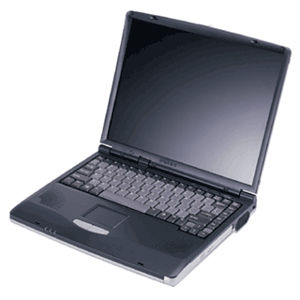
How To Get A Bargain On A New PC
May 27, 2006
Your Money:
Timing the Electronics Market for the Best Deal on a New PC
By DAMON DARLIN
Lower prices are part of the natural order in the world of electronics. Sometimes, though, the slow but relentless drop in price turns into a torrent. That's happening now in personal computers.
Prices are falling fast on notebook computers, as much as 18.5 percent so far this year, according to statistics compiled by Current Analysis, a market research firm. The bulk of notebooks now sell for less than $1,000.
The lower-priced notebooks are pushing desktop prices down, too. "I would expect even more intense price competition," said Charles Smulders, an analyst with Gartner, another market research firm.
The pace of price cuts has accelerated because a price war has broken out that offers great benefits to anyone in the market for a PC. And that could be a pretty large market. Forrester Research estimates that 70 percent of PC's in use are more than two years old and 90 percent of second, third and fourth computers are even older. The wars started quietly a year ago this week when Acer, a PC maker in Taiwan, re-entered the American market. The strategy was to get into the top tier of PC vendors as quickly as possible, which meant it would grab market share by keeping prices low.
Acer and other makers took business from Dell, which began to look less like the growth company that its investors were accustomed to. Dell's response came earlier this year as it cut prices.
Intel, meanwhile, was losing a significant portion of the microprocessor market to Advanced Micro Devices. Intel's share dropped to 77.9 percent from 81.5 percent in the first quarter of this year, according to Gartner, while A.M.D.'s market share grew to 20.4 percent from 16.6 percent two years ago. Intel is fighting to win back share, which means PC makers use the rivalry to get a price break.
Apple switched its processor to an Intel chip. Apple also makes running Windows applications on a Mac very easy. Owners of iPods are beginning to notice that Apple does more than sell music.
At the same time, Microsoft has pushed back the release of Vista, its new operating system, from before Christmas to early next year. Normally that would slow PC sales. But Microsoft is considering whether to offer incentives for consumers to buy PC's before Vista's release.
Some analysts had expected coming into the year that prices would actually go up slightly. Instead, the average price of a notebook computer dropped to $963 in April, an 18.5 percent decrease from a year ago, according to Current Analysis, which is based in Sterling, Va.
When an electronic device breaks through the $1,000 psychological barrier, sales take off. Samir Bhavnani, director for research at Current Analysis, said 37 percent more notebooks have been sold so far this year. About 60 percent of all notebook computers sold last month were priced below $1,000. He credits Dell, saying, "They love getting down in the mud."
Dell is running a promotion, which it bills as a celebration of its 22nd anniversary, with a $400 discount on PC's, plus a free monitor and free shipping.
Another statistic will tell you just how good consumers have it. While the number of notebooks sold is up 37 percent, revenue growth in the period is up only 15.5 percent, Mr. Bhavnani said. Companies are making less money on each notebook. Desktop computers are literally being given away. Retailers sold 14.8 percent more of them in the first five months of the year, but revenue declined 4 percent, Mr. Bhavnani said. Half of the computers sold for less than $500.
Consider the Hewlett-Packard Compaq Presario desktop offered this week at Office Depot. For $300 you get a PC with 512 megabytes of RAM and a 100-gigabyte hard drive. Office Depot tossed in a 17-inch CRT monitor and a printer.
"The material cost, before the printer, was around $400," estimated Mark Hill, Acer's vice president for sales in the United States. "It's crazy." Not that he's complaining. Acer has gained one point of market share this year by artful pricing.
So how does a consumer play this? As always with electronics, it is worth waiting. Expect even better deals around the Christmas season. But if you need to get one now, you certainly won't suffer. Deals will abound during the back-to-school season, which starts in June just as the school year ends.
Many consumers will end up waiting for Vista, Microsoft's new operating system. Some analysts expect that to keep computer sales from flagging during the year-end holidays, manufacturers will pressure Microsoft to offer a free upgrade to Vista to anyone buying a new PC.
Decide on the particular features you want on the computer. A notebook with one gigabyte of random access memory and an 80-gigabyte hard drive is recommended. Don't worry about the processor. Unless you are using the computer for designing nuclear power plants or playing video games professionally, any one of them on the market will serve you well.
Why a notebook, rather than a desktop? Convenience, mostly. Desktop models are becoming a relic of a bygone era as the artificial price difference between notebooks and desktops collapse. Notebooks now outsell desktops in stores. IDC estimates that by the middle of next year, more than half of all PC's sold will be notebooks.
Decide on a size. The computers that weigh less than four pounds are considered ultra portables, the kind you take on business trips. Anything heavier is a desktop replacement, perfect for moving from room to room or on a jaunt to the coffee shop. Go to a store to test the heft.
Reflect on how much style you want. As this category matures, manufacturers differentiate their products by making some notebooks look prettier than others. They charge more for anything on the color wheel besides gray and anything that glows.
Then watch the prices at retailers and at the manufacturers' Web sites. The last time you bought a PC, the best deals were probably online. That's not necessarily true anymore. The best deals can be inside the stores because those retailers are using PC's and notebooks in particular as loss leaders to drive traffic.
Here is another business trend that is helping consumers. As the prices of PC's drop, even if retailers sell more units their year-on-year revenue comparisons may drop. Investors closely watch that figure. So stores need to bolster revenue by selling even more of them. They do that by offering even better deals on notebooks because notebook buyers tend to buy other gear like bags and home networking equipment.
The brand you pick will depend on which one gives you the most computer for the price. Current Analysis compiles a "competitive value index" that measures the price of PC's against the features offered. When it looks at computers sold in all channels, the top berths go to Acer, Gateway, Dell and Hewlett-Packard.
Columns providing advice on buying a computer usually have a paragraph or two where the writer pauses and briefly genuflects at Apple. Great computer, they'll say, but — there is always that but — they carry a premium of 20 percent to 30 percent over a similarly configured computer running Windows.
Here comes those paragraphs. However, that required "but" may soon be retired. Gene Munster, a senior research analyst with Piper Jaffray in Minneapolis, compared Mac notebooks with similarly equipped notebook computers running Windows and discovered that the premium for a Mac is now only about 10 percent. "I don't think consumers go through this exercise," he said. The premium shrank, not because Apple cut its prices, Mr. Munster said, but because Apple, in switching to an Intel processor, increased the performance of its Macs, and then didn't raise prices.
A few more consumers may notice. Apple's market share, which climbed as high as 2.5 percent last year before the switch to Intel, has grown from 1.8 percent. Macs compete at the high end of the PC market, where the machines costing more than $1,500 are loaded with multimedia features like TV tuners and bigger hard drives to store photos, videos and music. Some have special chips designed to enhance the performance of video games. Price cuts have not been as deep up there, which is one reason Mr. Munster thinks the premium won't go back to 30 percent.
He said that the media viewing and editing software that comes with the Mac compensates for much of the remaining premium. "Apples are always going to be at a premium," he said.
Monday, May 15, 2006
Windows Live Mail Beta
Betas used to be considered dangerous. Now some applications (e.g. GMail) never give up there beta status but just continue adding features.
Microsoft's Windows Live Mail Beta is an upgrade to it's Hotmail email product. It's an excellent product that takes advantage of programs like AJAX to offer an Outlook-like experience with a web based product.
The clincher for me is Live Mail's auto spellcheck. Like recent versions of Microsoft Word it flags your spelling errors a they occur. Adios typos.
Microsoft's Windows Live Mail Beta is an upgrade to it's Hotmail email product. It's an excellent product that takes advantage of programs like AJAX to offer an Outlook-like experience with a web based product.
The clincher for me is Live Mail's auto spellcheck. Like recent versions of Microsoft Word it flags your spelling errors a they occur. Adios typos.
Tuesday, March 07, 2006
What to Upgrade and How to Do It
Joel Durham Jr. - ExtremeTech
Three years ago, when you bought it, your new super-system seemed to be the ultimate computer, the PC with which you could rise to power and rule the world! It chewed through the most demanding games like a shredder eating envelopes; it let you run a half-dozen office applications at a time with no pauses, even with anti-virus and scheduling apps running in the background. It was supreme.
As the months flew by, software became more demanding. Minimum system requirements crawled up the CPU scale; what in one version required 500MHz in its latest revision wants 2GHz. Doom 3 came out, and your system would only spit out 14 frames per second with average detail levels. When you jump from one application on the taskbar to another, there's a noticeable pause while the hard drive churns and you wait. And wait.
In fact, you find yourself waiting more and more for everything you do. From loading apps to encoding home movies or changing a TIFF to a JPEG, you simply hate the fact that you can actually go and get a cup of coffee while the computer sits there and thinks.
It very well could be time to upgrade your system. That's not to say you have to toss the whole thing out and start with a brand-new computer; most PCs can at least accept minor upgrades, and desktop systems built with standard parts are almost completely interchangeable.
But how do you tell exactly which component needs to be upgraded? And how do you know if your particular system will accept an upgrade? Where do you buy the parts? What steps do you take to perform the upgrade itself? Read on.
What's Dogging Your System?
When your system seems sluggish, you first need to narrow down the symptoms to find the culprit. Could it be a lack of sufficient main memory? A pokey graphics card? An aging CPU? What about a stuffed-full hard drive? Deciding what needs to be upgraded requires a bit of detective work.
Let's look at some symptoms, and the part that most likely causes them:
SYMPTOM: You've installed a new, super-powerful GeForce 7800-based graphics card. Ever since then, when you play 3-D games, the computer sometimes crashes or reboots. You've checked the connection and it's fine, the card is powered, and its GPU fan is running.
SOLUTION: Check your power supply. Those new cards pull well over 75 watts alone. If your system's PSU was just getting by with its current components, the new load could be causing it to brown out other components when the graphics card demands its utmost power draw. Get a 500+ watt PSU with dual 12V rails.
SYMPTOM: Everything works great--except new games. You used to be able to run Quake 3 Arena at 125 frames per second. Quake 4 barely makes it over 15 fps. You meet the minimum requirements, so what gives?
SOLUTION: You should swap out your computer's graphics card. Newer cards not only have more raw processing power, but also more memory. Look for a modern GeForce series 6 or 7 series, or a Radeon X800 or higher, with at least 256MB of local memory.
SYMPTOM: Everything is slow. Loading programs takes forever, when it used to be speedy. Changing from one open program to another through the taskbar or Alt-Tab brings the system to a crawl. No matter what you do, it takes forever.
SOLUTION: Check your hard drive space. It sounds like it's so full that the paging file is fragmented, and therefore everything that swaps data to the hard drive in lieu of main memory is going to drag down system performance. You could either install a bunch more memory to stave off the computer's need to swap, uninstall anything you don't use on your current hard drive and run Disk Cleanup to clear up as much space as possible, or upgrade the hard drive itself to a much larger size.
SYMPTOM: You've discovered your artistic bent and begun editing movies and pictures and rendering 3-D objects and scenes. The problem is, when you do something like encode a video, render the 3-D stuff or save big picture files that you've altered, it takes eons to complete the process.
SOLUTION: Those are CPU-intensive activities. The processor crunches all of the operations necessary to transform and render the images. A faster CPU would make a world of difference.
SYMPTOM: The system boots up quickly and works great when you use one or two programs at once, but as you open more applications, it starts to slow down. This is especially noticeable when you have a program that loads lots of huge files, like PhotoShop Elements, with a bunch of massive TIFF images open.
SOLUTION: You need more memory to handle all that up-front computing. The data and program files of open programs are stored in main memory, but when that bank runs out of room, they're swapped to the much slower paging file. More memory will allow more programs and data to reside in the much faster main memory area.
Can You Upgrade?
Now that you have an idea of what needs to be upgraded, you have to determine whether your computer will handle the upgrade. This requires research on your part. You must first find out what your computer's motherboard is capable of, the form factor of your computer case, PSU and motherboard, and more. This may require you to research the motherboard manual, or even do research at the motherboard manufacturer's Web site. You also will have to open the case.
Before opening the computer case, power down the PC and unplug it. Be static safe; use an antistatic bracelet properly or plant your feet and ground yourself before you reach into the PC. Handle circuit boards by the edges and, whether removing or installing something, don't force it. You might break something.
? For a CPU upgrade, learn the fastest CPU your computer's motherboard will support (check the manual). If it won't support a CPU significantly faster than the one it's already rocking, you need to upgrade the motherboard.
? For memory, remember that Windows XP only makes use of a maximum of 4GB of RAM. Find out your computer's current memory configuration, how many memory slots it has, what type of modules are installed and so on. Then, research the motherboard manual for acceptable configurations. Can you add memory, or must you replace the modules already installed? Note: don't mix memory types. If your computer has, for instance, PC3200 memory already installed, and you plan to add to it, add PC3200 memory.
? For the graphics card, make sure you get a replacement that fits the proper slot. Graphics cards come in both AGP and PCI Express X16 varieties, and they're not interchangeable.
? For the hard drive, make sure you get a drive with the same interface. Don't get a SATA (Serial ATA) drive if your motherboard doesn't support it unless you also purchase a SATA adapter. For a drop-in replacement, find out what interface your old hard drive supports (IDE or SATA) and get a drive of the same type with a larger capacity.
? For a motherboard replacement, you need to learn the form factor of the board and get a replacement that will fit your case. Anything not compatible with the new board (possibly the CPU, memory, power supply and graphics card) will have to be replaced.
? For the power supply, be sure to get the same type with all of the necessary connectors connectors.
The Basic Steps to Performing an Upgrade
? Get the right parts! Research, research, research. Check manuals, manufacturer Web sites, and every other resource to ensure compatibility with your system.
? For components with drivers: Uninstall the current drivers.
? Power down the machine. Unplug it.
? Remove the component to be upgraded if necessary. Be on the lookout for clips and brackets that secure the components in place. Expansion cards have a screw that secures them; memory modules have clips on either side of them.
o You can remove graphics cards, sound cards, CPUs and memory modules that are no longer needed.
o Don't remove memory modules that you're supplementing with more modules. If you're replacing an onboard graphics or audio solution, don't try to physically remove it from the board. Disable it in the BIOS.
o If you're removing the entire motherboard, first remove all the expansion cards, then unplug all of the cabling. Remove all of the screws holding it in place. Gently remove it from the case.
o If you're removing a hard drive, note that many hard drives reside in removable brackets. Remove the bracket itself, then remove the hard drive.
o If you're removing an optical drive, pay attention to whether the case uses drive rails to seat the 5-inch external drives. If it does, look at how the drive rails are attached to the drive, and replicate their configuration when you prepare to install the new drive.
? Install the new component.
o If you're installing a motherboard, it helps to first install its CPU, memory and any cables that will reach, before placing it in the case and screwing it down. Before seating it, install the riser bezel (the metal shield that fits in the rectangular area where the ports, like the USB and Ethernet ports, reside.)
o If you're installing memory, seat it gently into place and then press along its length evenly until it snaps into its sockets.
o Secure drives with all four screws to reduce vibration and extend the life of the drive. This is especially true for hard drives.
o Make sure you cool a new CPU with a compatible cooler, and use a thermal compound between the cooler and the top of the CPU.
o Make sure expansion cards are fully seated before you screw them down.
o For a hard drive replacement, install the new drive as a slave. You can then use Norton Ghost to replicate the old drive onto the new drive, remove the old drive and discard the old drive.
? Check all of the cables and connections before powering up the computer. You may wish to power it up before you close the case, on the chance that you have to troubleshoot a loose connection.
? Fire up Windows. Install the drivers for your new equipment if necessary (and it will be necessary for graphics cards, sound cards, motherboards, other expansion cards and some CPUs). You might have to cancel the Windows hardware detection wizard and install the drivers through their own installation routine; read the instructions that came with the new part to find out for sure.
? If you've replaced a motherboard, Windows XP might not be happy without reinstalling it over the top of your current installation. It doesn't take kindly to low-level hardware replacements.
Those, in a nutshell, are some techniques to upgrading your computer. More thorough write-ups of each component could easily fill articles this size on their own, so consult the instructions that came with your components for more details. Also, hit upgrade guides on Web sites like PCMag.com and ExtremeTech.com.
Joel Durham Jr. is a freelance technology writer and author of "PC Modding for Dummies"(Wiley, 2005).
Three years ago, when you bought it, your new super-system seemed to be the ultimate computer, the PC with which you could rise to power and rule the world! It chewed through the most demanding games like a shredder eating envelopes; it let you run a half-dozen office applications at a time with no pauses, even with anti-virus and scheduling apps running in the background. It was supreme.
As the months flew by, software became more demanding. Minimum system requirements crawled up the CPU scale; what in one version required 500MHz in its latest revision wants 2GHz. Doom 3 came out, and your system would only spit out 14 frames per second with average detail levels. When you jump from one application on the taskbar to another, there's a noticeable pause while the hard drive churns and you wait. And wait.
In fact, you find yourself waiting more and more for everything you do. From loading apps to encoding home movies or changing a TIFF to a JPEG, you simply hate the fact that you can actually go and get a cup of coffee while the computer sits there and thinks.
It very well could be time to upgrade your system. That's not to say you have to toss the whole thing out and start with a brand-new computer; most PCs can at least accept minor upgrades, and desktop systems built with standard parts are almost completely interchangeable.
But how do you tell exactly which component needs to be upgraded? And how do you know if your particular system will accept an upgrade? Where do you buy the parts? What steps do you take to perform the upgrade itself? Read on.
What's Dogging Your System?
When your system seems sluggish, you first need to narrow down the symptoms to find the culprit. Could it be a lack of sufficient main memory? A pokey graphics card? An aging CPU? What about a stuffed-full hard drive? Deciding what needs to be upgraded requires a bit of detective work.
Let's look at some symptoms, and the part that most likely causes them:
SYMPTOM: You've installed a new, super-powerful GeForce 7800-based graphics card. Ever since then, when you play 3-D games, the computer sometimes crashes or reboots. You've checked the connection and it's fine, the card is powered, and its GPU fan is running.
SOLUTION: Check your power supply. Those new cards pull well over 75 watts alone. If your system's PSU was just getting by with its current components, the new load could be causing it to brown out other components when the graphics card demands its utmost power draw. Get a 500+ watt PSU with dual 12V rails.
SYMPTOM: Everything works great--except new games. You used to be able to run Quake 3 Arena at 125 frames per second. Quake 4 barely makes it over 15 fps. You meet the minimum requirements, so what gives?
SOLUTION: You should swap out your computer's graphics card. Newer cards not only have more raw processing power, but also more memory. Look for a modern GeForce series 6 or 7 series, or a Radeon X800 or higher, with at least 256MB of local memory.
SYMPTOM: Everything is slow. Loading programs takes forever, when it used to be speedy. Changing from one open program to another through the taskbar or Alt-Tab brings the system to a crawl. No matter what you do, it takes forever.
SOLUTION: Check your hard drive space. It sounds like it's so full that the paging file is fragmented, and therefore everything that swaps data to the hard drive in lieu of main memory is going to drag down system performance. You could either install a bunch more memory to stave off the computer's need to swap, uninstall anything you don't use on your current hard drive and run Disk Cleanup to clear up as much space as possible, or upgrade the hard drive itself to a much larger size.
SYMPTOM: You've discovered your artistic bent and begun editing movies and pictures and rendering 3-D objects and scenes. The problem is, when you do something like encode a video, render the 3-D stuff or save big picture files that you've altered, it takes eons to complete the process.
SOLUTION: Those are CPU-intensive activities. The processor crunches all of the operations necessary to transform and render the images. A faster CPU would make a world of difference.
SYMPTOM: The system boots up quickly and works great when you use one or two programs at once, but as you open more applications, it starts to slow down. This is especially noticeable when you have a program that loads lots of huge files, like PhotoShop Elements, with a bunch of massive TIFF images open.
SOLUTION: You need more memory to handle all that up-front computing. The data and program files of open programs are stored in main memory, but when that bank runs out of room, they're swapped to the much slower paging file. More memory will allow more programs and data to reside in the much faster main memory area.
Can You Upgrade?
Now that you have an idea of what needs to be upgraded, you have to determine whether your computer will handle the upgrade. This requires research on your part. You must first find out what your computer's motherboard is capable of, the form factor of your computer case, PSU and motherboard, and more. This may require you to research the motherboard manual, or even do research at the motherboard manufacturer's Web site. You also will have to open the case.
Before opening the computer case, power down the PC and unplug it. Be static safe; use an antistatic bracelet properly or plant your feet and ground yourself before you reach into the PC. Handle circuit boards by the edges and, whether removing or installing something, don't force it. You might break something.
? For a CPU upgrade, learn the fastest CPU your computer's motherboard will support (check the manual). If it won't support a CPU significantly faster than the one it's already rocking, you need to upgrade the motherboard.
? For memory, remember that Windows XP only makes use of a maximum of 4GB of RAM. Find out your computer's current memory configuration, how many memory slots it has, what type of modules are installed and so on. Then, research the motherboard manual for acceptable configurations. Can you add memory, or must you replace the modules already installed? Note: don't mix memory types. If your computer has, for instance, PC3200 memory already installed, and you plan to add to it, add PC3200 memory.
? For the graphics card, make sure you get a replacement that fits the proper slot. Graphics cards come in both AGP and PCI Express X16 varieties, and they're not interchangeable.
? For the hard drive, make sure you get a drive with the same interface. Don't get a SATA (Serial ATA) drive if your motherboard doesn't support it unless you also purchase a SATA adapter. For a drop-in replacement, find out what interface your old hard drive supports (IDE or SATA) and get a drive of the same type with a larger capacity.
? For a motherboard replacement, you need to learn the form factor of the board and get a replacement that will fit your case. Anything not compatible with the new board (possibly the CPU, memory, power supply and graphics card) will have to be replaced.
? For the power supply, be sure to get the same type with all of the necessary connectors connectors.
The Basic Steps to Performing an Upgrade
? Get the right parts! Research, research, research. Check manuals, manufacturer Web sites, and every other resource to ensure compatibility with your system.
? For components with drivers: Uninstall the current drivers.
? Power down the machine. Unplug it.
? Remove the component to be upgraded if necessary. Be on the lookout for clips and brackets that secure the components in place. Expansion cards have a screw that secures them; memory modules have clips on either side of them.
o You can remove graphics cards, sound cards, CPUs and memory modules that are no longer needed.
o Don't remove memory modules that you're supplementing with more modules. If you're replacing an onboard graphics or audio solution, don't try to physically remove it from the board. Disable it in the BIOS.
o If you're removing the entire motherboard, first remove all the expansion cards, then unplug all of the cabling. Remove all of the screws holding it in place. Gently remove it from the case.
o If you're removing a hard drive, note that many hard drives reside in removable brackets. Remove the bracket itself, then remove the hard drive.
o If you're removing an optical drive, pay attention to whether the case uses drive rails to seat the 5-inch external drives. If it does, look at how the drive rails are attached to the drive, and replicate their configuration when you prepare to install the new drive.
? Install the new component.
o If you're installing a motherboard, it helps to first install its CPU, memory and any cables that will reach, before placing it in the case and screwing it down. Before seating it, install the riser bezel (the metal shield that fits in the rectangular area where the ports, like the USB and Ethernet ports, reside.)
o If you're installing memory, seat it gently into place and then press along its length evenly until it snaps into its sockets.
o Secure drives with all four screws to reduce vibration and extend the life of the drive. This is especially true for hard drives.
o Make sure you cool a new CPU with a compatible cooler, and use a thermal compound between the cooler and the top of the CPU.
o Make sure expansion cards are fully seated before you screw them down.
o For a hard drive replacement, install the new drive as a slave. You can then use Norton Ghost to replicate the old drive onto the new drive, remove the old drive and discard the old drive.
? Check all of the cables and connections before powering up the computer. You may wish to power it up before you close the case, on the chance that you have to troubleshoot a loose connection.
? Fire up Windows. Install the drivers for your new equipment if necessary (and it will be necessary for graphics cards, sound cards, motherboards, other expansion cards and some CPUs). You might have to cancel the Windows hardware detection wizard and install the drivers through their own installation routine; read the instructions that came with the new part to find out for sure.
? If you've replaced a motherboard, Windows XP might not be happy without reinstalling it over the top of your current installation. It doesn't take kindly to low-level hardware replacements.
Those, in a nutshell, are some techniques to upgrading your computer. More thorough write-ups of each component could easily fill articles this size on their own, so consult the instructions that came with your components for more details. Also, hit upgrade guides on Web sites like PCMag.com and ExtremeTech.com.
Joel Durham Jr. is a freelance technology writer and author of "PC Modding for Dummies"(Wiley, 2005).
Monday, March 06, 2006
Windows Defender
Microsoft Tests a Windows Defense
By Rob Pegoraro
Sunday, March 5, 2006; F07
When computing experts say you should never try out beta-test versions of any system-utility software, they're almost always right. A bug in a program that lives in the core of a PC's software could lead to a complete meltdown, not just the usual crashes.
So what's something called Windows Defender (Beta 2) doing on Microsoft's home page, atop the "Popular Downloads" list?
Microsoft first released this free anti-spyware tool as "Windows AntiSpyware" in January 2005, a month after it bought the program's developer, Giant Software Co. After 13 months of development, a few revisions and one name change, this program still isn't finished-- but in that time, Windows Defender has persuaded many users to disregard the rule about beta system utilities.
I can see why. By policing how new programs try to modify Windows, Defender has swatted away much of the spyware I've thrown at it while staying out of the way otherwise. (The unwanted programs it couldn't evict defied the efforts of competing spyware removers, too.)
And it provides something horribly overdue in Windows: a simple way to inspect all the software active on a computer, including those normally hidden from view.
Plus, Windows Defender is a free security tool from Microsoft, the company whose design decisions made it so easy for spyware to invade Windows in the first place. It only seems right for Microsoft to make amends in this way.
Defender is no panacea -- the name alone oversells an application lacking anti-virus or firewall defenses. But it's a sensible way to help keep a Windows 2000 or XP PC free of hidden programs tossing up ads (adware) or tracking your online habits (spyware).
Downloading Defender ( http://www.microsoft.com/windowsdefender ) involves one brief annoyance; you must verify that you're not using a stolen copy of Windows by running a small program, either in your browser or from your hard drive. From then on, it's a quick, restart-free process to install this program, update its spyware database and scan your computer.
As it has revised Defender over the past year, Microsoft has steadily pared away its interface. Its main screen now features a total of nine buttons -- worlds simpler than most competitors.
Unfortunately, you'll have to dig a little deeper to get Defender in its most secure state. It comes preset to grant you veto power only over the actions of known offenders, a take-candy-from-strangers approach that invites trouble. (Older versions of Defender were more aggressive about this.) Click the Tools icon, then select General Settings to fix that oversight.
On a clean PC, Defender stays invisible except when it updates itself and scans the system overnight. Unlike most spyware removers, it correctly distinguishes between browser cookies set by advertising sites-- tiny, easily blocked, inert text files that can't do anything on their own-- and live software code.
If you download from the Web's sketchier sources, Defender will act, depending on when it identifies a new program as spyware. It can flag some as they download, but others go unnoticed until their installers try to force-feed code into the guts of Windows.
For example, Defender blocked downloads of the Kazaa and BearShare file-sharing programs and the Zango "search assistant." But an instant-messaging program bundling the same Zango software went unnoticed until its setup started. The same happened with a screensaver harboring the "Best Offers Direct" spyware (unlike an earlier Defender release a few months ago). But after a few system scans and reboots, Defender reported the system clean; other anti-spyware tools agreed.
Then, to simulate the stupidest behavior possible, I visited a site advertising pirated copies of computer games and invited it to install a strange ActiveX program in Internet Explorer. This time, Defender first did nothing, then threw up a flurry of dialog boxes as it tried to remove the junk spawned by this download.
Restart followed restart as Defender kept finding new instances of this "Look2Me" spyware. Once or twice, it gave a "no unwanted or harmful software detected" verdict even as new ads popped up.
But one of the most popular spyware removers, the usually effective Spybot Search & Destroy, also gave this computer a thumbs-up. Neither that nor any other program I tried could expel this nuisance; after several hours I wiped the hard drive and reinstalled Windows.
You'd be foolish to rely on Windows Defender alone to rid Windows of spyware. But you'd be about as foolish to rely on any other single anti-spyware utility.
Keep a few on hand, but also use your own common sense and switch to safer software-- like the Firefox and Opera Web browsers, which lack the ActiveX feature exploited by the pirated-games site.
Or you could just get a Mac.
Even Windows users who can stay out of trouble on their own can benefit from Defender, however. With the change in its settings outlined above, this program makes it easy to restrain many installers' pushy habits -- for instance, the 11 system-setting changes Yahoo Music Engine's setup makes, most unrelated to playing digital music.
Meanwhile, Defender's Software Explorer (in its Tools screen) offers a helpful view of what's active on your computer. It lists all the programs running now, those that launch at start-up and those that connect to the Internet -- providing not just the usual cryptic file names ("S24EvMon.exe"), but also their full names, their developers' names, whether they belong to Windows, when they were installed and so on. You can shut down or disable most of these programs with one click -- though removing them may take a trip to the Add or Remove Programs control panel.
Microsoft says Windows Defender will be built into Windows Vista, the replacement for XP due this fall; I'd expect to see a finished version of Defender for XP and 2000 by then. But the spyware problem in Windows is a mess now, and Defender can help remedy that. It would be a mistake to ignore it just because of the "Beta" in its name.
By Rob Pegoraro
Sunday, March 5, 2006; F07
When computing experts say you should never try out beta-test versions of any system-utility software, they're almost always right. A bug in a program that lives in the core of a PC's software could lead to a complete meltdown, not just the usual crashes.
So what's something called Windows Defender (Beta 2) doing on Microsoft's home page, atop the "Popular Downloads" list?
Microsoft first released this free anti-spyware tool as "Windows AntiSpyware" in January 2005, a month after it bought the program's developer, Giant Software Co. After 13 months of development, a few revisions and one name change, this program still isn't finished-- but in that time, Windows Defender has persuaded many users to disregard the rule about beta system utilities.
I can see why. By policing how new programs try to modify Windows, Defender has swatted away much of the spyware I've thrown at it while staying out of the way otherwise. (The unwanted programs it couldn't evict defied the efforts of competing spyware removers, too.)
And it provides something horribly overdue in Windows: a simple way to inspect all the software active on a computer, including those normally hidden from view.
Plus, Windows Defender is a free security tool from Microsoft, the company whose design decisions made it so easy for spyware to invade Windows in the first place. It only seems right for Microsoft to make amends in this way.
Defender is no panacea -- the name alone oversells an application lacking anti-virus or firewall defenses. But it's a sensible way to help keep a Windows 2000 or XP PC free of hidden programs tossing up ads (adware) or tracking your online habits (spyware).
Downloading Defender ( http://www.microsoft.com/windowsdefender ) involves one brief annoyance; you must verify that you're not using a stolen copy of Windows by running a small program, either in your browser or from your hard drive. From then on, it's a quick, restart-free process to install this program, update its spyware database and scan your computer.
As it has revised Defender over the past year, Microsoft has steadily pared away its interface. Its main screen now features a total of nine buttons -- worlds simpler than most competitors.
Unfortunately, you'll have to dig a little deeper to get Defender in its most secure state. It comes preset to grant you veto power only over the actions of known offenders, a take-candy-from-strangers approach that invites trouble. (Older versions of Defender were more aggressive about this.) Click the Tools icon, then select General Settings to fix that oversight.
On a clean PC, Defender stays invisible except when it updates itself and scans the system overnight. Unlike most spyware removers, it correctly distinguishes between browser cookies set by advertising sites-- tiny, easily blocked, inert text files that can't do anything on their own-- and live software code.
If you download from the Web's sketchier sources, Defender will act, depending on when it identifies a new program as spyware. It can flag some as they download, but others go unnoticed until their installers try to force-feed code into the guts of Windows.
For example, Defender blocked downloads of the Kazaa and BearShare file-sharing programs and the Zango "search assistant." But an instant-messaging program bundling the same Zango software went unnoticed until its setup started. The same happened with a screensaver harboring the "Best Offers Direct" spyware (unlike an earlier Defender release a few months ago). But after a few system scans and reboots, Defender reported the system clean; other anti-spyware tools agreed.
Then, to simulate the stupidest behavior possible, I visited a site advertising pirated copies of computer games and invited it to install a strange ActiveX program in Internet Explorer. This time, Defender first did nothing, then threw up a flurry of dialog boxes as it tried to remove the junk spawned by this download.
Restart followed restart as Defender kept finding new instances of this "Look2Me" spyware. Once or twice, it gave a "no unwanted or harmful software detected" verdict even as new ads popped up.
But one of the most popular spyware removers, the usually effective Spybot Search & Destroy, also gave this computer a thumbs-up. Neither that nor any other program I tried could expel this nuisance; after several hours I wiped the hard drive and reinstalled Windows.
You'd be foolish to rely on Windows Defender alone to rid Windows of spyware. But you'd be about as foolish to rely on any other single anti-spyware utility.
Keep a few on hand, but also use your own common sense and switch to safer software-- like the Firefox and Opera Web browsers, which lack the ActiveX feature exploited by the pirated-games site.
Or you could just get a Mac.
Even Windows users who can stay out of trouble on their own can benefit from Defender, however. With the change in its settings outlined above, this program makes it easy to restrain many installers' pushy habits -- for instance, the 11 system-setting changes Yahoo Music Engine's setup makes, most unrelated to playing digital music.
Meanwhile, Defender's Software Explorer (in its Tools screen) offers a helpful view of what's active on your computer. It lists all the programs running now, those that launch at start-up and those that connect to the Internet -- providing not just the usual cryptic file names ("S24EvMon.exe"), but also their full names, their developers' names, whether they belong to Windows, when they were installed and so on. You can shut down or disable most of these programs with one click -- though removing them may take a trip to the Add or Remove Programs control panel.
Microsoft says Windows Defender will be built into Windows Vista, the replacement for XP due this fall; I'd expect to see a finished version of Defender for XP and 2000 by then. But the spyware problem in Windows is a mess now, and Defender can help remedy that. It would be a mistake to ignore it just because of the "Beta" in its name.
Tuesday, January 03, 2006
Common Sense PC Maintenance
Basic Rules Plus Common Sense Add Up to Security
By Rob Pegoraro
Washington Post
Sunday, December 25, 2005;
For some people, the worst gift ever would be a new computer with an Internet connection. One embittered user wrote in October to say that he was "so frustrated with hackers, virus, Trojans, worms, constant upgrades, security patches, etc, etc." that he was going to suspend his Internet account.
I'm guessing that a new laptop wasn't on his wish list this year.
But many other people have been booting up new computers and wondering how to keep them secure. They are likely to get some confusing messages about that. The worst one is "you can't" -- that you must accept these intrusions because it's too hard to stop them all.
Nonsense. If you can learn to cook with fire, drive a car and pay your taxes -- all activities in which, unlike computing, failure is punishable by fines, imprisonment or death -- you can figure out how to operate a computer safely.
Two other messages merely cause people to waste a lot of time and effort.
One is that you can only keep a computer safe by using the right tools. Your PC will not be secure, the thinking goes, unless you add the correct firewall, anti-virus software and anti-spyware utilities -- with any others, you might as well leave the front door unlocked.
The other is that failure to practice the right rituals will invite the wrath of the computing gods. This leads people to do things like unplug their Internet connection every night (even though that's the easiest time for a computer to get security updates) then plug it back in each morning. They will turn off harmless Web-browsing options, just in case, and delete browser cookies that don't threaten their PC's integrity. Some will even reinstall Windows every year, just in case.
A smarter approach combines a little of both beliefs: Let your computer guard itself with a firewall and automatic updates, pick safe programs and keep them up to date, then use your common sense to spot the bait set out by the perpetrators of viruses, spyware, phishing attacks and other "malware."
This applies whether you run Windows, Mac OS X or any other system-- although the risks are far lower outside Windows.
The first step is the simplest: Turn on your computer's firewall. By screening unsolicited connections, it stops the most dangerous attacks, the network worms that can board a computer without your consent or notice. (Viruses must trick people into running them, which is why a PC guarded solely by a firewall can be kept clean if used cautiously enough.)
In any new Windows PC, the firewall is already on; don't worry about adding some other company's firewall software. In Mac OS X, open the System Preferences window and select the Sharing category to activate the built-in firewall.
The second step is to get any security fixes for your operating system. Windows XP now does this automatically, downloading and installing patches as they arrive. Mac OS X will fetch updates automatically, but you must remember to install them yourself.
Step three applies to Windows users: Run whatever anti-virus program came on the PC and make sure it will update itself past the initial trial period. That will usually require buying a yearly subscription. Pay up, or switch to the free Avast ( http://www.avast.com/eng/free_virus_protectio.html ) or AVG ( http://free.grisoft.com/ ) anti-virus utilities.
Step four also goes for Windows users: Switch from Microsoft's Internet Explorer browser to such safer replacements as Mozilla Firefox (my pick) or Opera, both available through free downloads ( http://www.mozilla.com/ and http://www.opera.com/ ). Even after dozens of security fixes, IE's basic design leaves it on a weaker footing than other browsers.
Because Microsoft's Outlook Express e-mail software shares code with Internet Explorer, it can be a risk too -- although it does effectively block access to programs attached to e-mails, the most common way for viruses to spread. This aging program also doesn't screen against spam or phishing e-mails (those messages that demand you verify a financial account but lead you to a fake site). Instead, try the free Mozilla Thunderbird, a cousin of Firefox, or Qualcomm's Eudora ( http://www.eudora.com/ ).
Step five goes for everybody: Update any programs that regularly access the Internet, such as Sun Microsystems' Java software ( http://www.java.com/ ), media programs such as iTunes and RealPlayer, the Macromedia Flash browser plug-in ( http://www.macromedia.com/flashplayer/ ) and instant-messaging applications. Most of these programs will look for new versions automatically; if not, go to each application's Web site and download a fresh copy.
Step six is the one that never ends: Use common sense when you run into the unexpected. Don't attribute omniscience to Internet sites or think that things must always work differently online than off.
That random Web page you just visited? No, it doesn't know about your computer's software, so you can ignore the ad telling you to scan your PC for trouble now .
The e-mail from the FBI, ordering you open the attached file to read about the illegal Web sites you visit? Ignore that too. If the Feds really think you're an outlaw, they would send men and women with guns to express their concern.
That e-mail alert purportedly from your bank? Think about that: If your account was really in that much trouble, wouldn't the bank call you instead of sending an e-mail you might not read until days later? If you're really worried, phone the bank yourself to check. Or type the bank's address into your browser -- ignore the link in the e-mail -- and see if any messages are waiting for you.
Don't rush to install strange new software. Let the collective expertise of the Internet help you first: Run a Google search ("Is StrangeFreeProgram spyware?") to see if other users had problems.
If you're not the only person using the computer, make sure that everybody else follows these practices as well. If they can't or won't, lock your account on the computer with a password, then set up a limited account for them that will stop them from causing more than minor damage. In Windows XP, go to the User Accounts control panel; in Mac OS X, select the Accounts icon in the System Preferences' window.
What about all the anti-spyware and Internet-cleanup programs the security gurus recommend? They are worth having around (although it's still in testing, I recommend Microsoft's free Anti-Spyware), but if you do your job right you'll never have to run them.
By Rob Pegoraro
Washington Post
Sunday, December 25, 2005;
For some people, the worst gift ever would be a new computer with an Internet connection. One embittered user wrote in October to say that he was "so frustrated with hackers, virus, Trojans, worms, constant upgrades, security patches, etc, etc." that he was going to suspend his Internet account.
I'm guessing that a new laptop wasn't on his wish list this year.
But many other people have been booting up new computers and wondering how to keep them secure. They are likely to get some confusing messages about that. The worst one is "you can't" -- that you must accept these intrusions because it's too hard to stop them all.
Nonsense. If you can learn to cook with fire, drive a car and pay your taxes -- all activities in which, unlike computing, failure is punishable by fines, imprisonment or death -- you can figure out how to operate a computer safely.
Two other messages merely cause people to waste a lot of time and effort.
One is that you can only keep a computer safe by using the right tools. Your PC will not be secure, the thinking goes, unless you add the correct firewall, anti-virus software and anti-spyware utilities -- with any others, you might as well leave the front door unlocked.
The other is that failure to practice the right rituals will invite the wrath of the computing gods. This leads people to do things like unplug their Internet connection every night (even though that's the easiest time for a computer to get security updates) then plug it back in each morning. They will turn off harmless Web-browsing options, just in case, and delete browser cookies that don't threaten their PC's integrity. Some will even reinstall Windows every year, just in case.
A smarter approach combines a little of both beliefs: Let your computer guard itself with a firewall and automatic updates, pick safe programs and keep them up to date, then use your common sense to spot the bait set out by the perpetrators of viruses, spyware, phishing attacks and other "malware."
This applies whether you run Windows, Mac OS X or any other system-- although the risks are far lower outside Windows.
The first step is the simplest: Turn on your computer's firewall. By screening unsolicited connections, it stops the most dangerous attacks, the network worms that can board a computer without your consent or notice. (Viruses must trick people into running them, which is why a PC guarded solely by a firewall can be kept clean if used cautiously enough.)
In any new Windows PC, the firewall is already on; don't worry about adding some other company's firewall software. In Mac OS X, open the System Preferences window and select the Sharing category to activate the built-in firewall.
The second step is to get any security fixes for your operating system. Windows XP now does this automatically, downloading and installing patches as they arrive. Mac OS X will fetch updates automatically, but you must remember to install them yourself.
Step three applies to Windows users: Run whatever anti-virus program came on the PC and make sure it will update itself past the initial trial period. That will usually require buying a yearly subscription. Pay up, or switch to the free Avast ( http://www.avast.com/eng/free_virus_protectio.html ) or AVG ( http://free.grisoft.com/ ) anti-virus utilities.
Step four also goes for Windows users: Switch from Microsoft's Internet Explorer browser to such safer replacements as Mozilla Firefox (my pick) or Opera, both available through free downloads ( http://www.mozilla.com/ and http://www.opera.com/ ). Even after dozens of security fixes, IE's basic design leaves it on a weaker footing than other browsers.
Because Microsoft's Outlook Express e-mail software shares code with Internet Explorer, it can be a risk too -- although it does effectively block access to programs attached to e-mails, the most common way for viruses to spread. This aging program also doesn't screen against spam or phishing e-mails (those messages that demand you verify a financial account but lead you to a fake site). Instead, try the free Mozilla Thunderbird, a cousin of Firefox, or Qualcomm's Eudora ( http://www.eudora.com/ ).
Step five goes for everybody: Update any programs that regularly access the Internet, such as Sun Microsystems' Java software ( http://www.java.com/ ), media programs such as iTunes and RealPlayer, the Macromedia Flash browser plug-in ( http://www.macromedia.com/flashplayer/ ) and instant-messaging applications. Most of these programs will look for new versions automatically; if not, go to each application's Web site and download a fresh copy.
Step six is the one that never ends: Use common sense when you run into the unexpected. Don't attribute omniscience to Internet sites or think that things must always work differently online than off.
That random Web page you just visited? No, it doesn't know about your computer's software, so you can ignore the ad telling you to scan your PC for trouble now .
The e-mail from the FBI, ordering you open the attached file to read about the illegal Web sites you visit? Ignore that too. If the Feds really think you're an outlaw, they would send men and women with guns to express their concern.
That e-mail alert purportedly from your bank? Think about that: If your account was really in that much trouble, wouldn't the bank call you instead of sending an e-mail you might not read until days later? If you're really worried, phone the bank yourself to check. Or type the bank's address into your browser -- ignore the link in the e-mail -- and see if any messages are waiting for you.
Don't rush to install strange new software. Let the collective expertise of the Internet help you first: Run a Google search ("Is StrangeFreeProgram spyware?") to see if other users had problems.
If you're not the only person using the computer, make sure that everybody else follows these practices as well. If they can't or won't, lock your account on the computer with a password, then set up a limited account for them that will stop them from causing more than minor damage. In Windows XP, go to the User Accounts control panel; in Mac OS X, select the Accounts icon in the System Preferences' window.
What about all the anti-spyware and Internet-cleanup programs the security gurus recommend? They are worth having around (although it's still in testing, I recommend Microsoft's free Anti-Spyware), but if you do your job right you'll never have to run them.
Monday, November 14, 2005
Seven Steps For Safe Computing
This is a good summary of the steps we should be taking to fight the onslaught of viruses, trojans , spyware etc. that threaten our computing experience.
Cyber-Security: Tips For Safe Computing
We originally wrote this computer security "how-to" nearly three years ago, but experts are still doling out the same advice. We've added a few new tips, focusing mainly on spyware and the importance of backing up your data. Follow these simple instructions and dramatically decrease the likelihood that you will run into serious security problems online.
1. Install and use a firewall. Considered the first and last line of defense, a firewall is a software program or piece of hardware that prevents unauthorized Internet traffic from entering or leaving your computer, particularly computers that are always left connected to the Internet (typically, Internet users who connect over DSL or cable modem fit this category). Properly configured, a firewall can give you greater control over your computer and prevent attackers from successfully scanning your system to learn details about potential weaknesses on your network or PC.
For a sobering look at the insecurity in the average operating system, consider the research conducted by The Honeynet Project. The project takes servers and computers "out-of-the-box" -- without any changes to improve or reduce their security -- and connects them to the Internet for the sole purpose of seeing how often they are probed and hacked, and what techniques attackers are using.
Based on the project's tests, the average unprotected Windows computer with the most common security holes will be hacked within 20 minutes. Even secured computers will be probed or scanned for known vulnerabilities dozens times each day. It's nothing personal, said Honeynet Project founder Lance Spitzner. "The vast majority of attacks on the Net today are launched by people out to break into as many computers as possible," he said.
Using automated software tools available online, a malicious hacker can set in motion a scan of more than a million computers before he goes to bed at night and have hundreds of systems under his thumb by morning, Spitzner said.
"It's not so much people not realizing they're vulnerable than it is they don't believe they're a target," he said. "The fact is, anybody can be a target."
The reasons attackers would want to break into your machine are as varied as the methods for doing so. Computer criminals often use other peoples' PCs for storing files that would be incriminating if found on their own machines, such as child pornography or lists of stolen credit card numbers. More frequently, criminals hijack computers for financial gain or as a means of attacking others with impunity.
2. Use anti-virus software and update virus definitions regularly.
Most new computers come equipped with anti-virus software already installed, but that software requires regular updates that tell the program how to identify the latest threats. In most cases, antivirus program installed on new PCs only provides the user updates for less than 90 days, so it's important to renew your subscription at that point or install a different anti-virus program.
Once executed on a vulnerable computer, most viruses transmit copies of themselves to all of names in the victim's e-mail address book. As a result, people who don't use antivirus software or allow their virus definitions to expire are putting their friends, co-workers and loved ones in the line of fire.
If you have put off using anti-virus because you don't want to pay for it, there are several free and very good anti-virus programs available -- see the links to the right.
3. Create secure, original passwords. Creating unique passwords is one of the easiest ways for consumers to ensure their privacy and security online. See our password primer for tips.
4. Update your computer(s) with the latest vendor security patches. Fully 95 percent of all network intrusions can be avoided by keeping computer systems updated with the latest vendor patches, according to the CERT Coordination Center's Software Engineering Group, a government-funded computer security watchdog group at Carnegie Mellon University.
Visit www.uscert.gov for a comprehensive list of security alerts and vendor patches. Windows users can go to windowsupdate.microsoft.com to install the latest updates. Using Microsoft's automatic update notification service, users can get updates when they are released. Windows XP users can configure updates to install automatically.
If you don't know how to enable automatic updates from Microsoft, visit the company's tutorial.
5. Practice basic e-mail and downloading "street smarts." Most viruses are transmitted as e-mail attachments. Some may come from people you know; others will enter your inbox bearing enticing subject lines. Either way, users should be wary of opening all attachments, and scan each one with antivirus software before opening them.
Avoid opening e-mail attachments that contain ".vbs," ".scr," ".exe," or ".pif" file extensions. Files that end in these extensions are most likely to contain some sort of virus.
Also, it's a good idea to avoid clicking on Web links in e-mails if you are unsure of their origin. Plenty of bad things transmit themselves just by convincing users to visit malicious Web sites.
People who use "peer-to-peer" file-sharing networks such as Kazaa, eDonkey, and Bittorrent place themselves at a particularly high risk, especially when downloading "executable" programs, experts say.
Such nasties include "Trojan horse" programs that allow attackers to control your computer from afar, and keystroke loggers, which can record everything you type on your keyboard, including passwords and bank account numbers.
P2P users also should take care to limit the directories they share. It is not uncommon for users who rush through the process for installing programs that run those services to end up sharing the contents of their entire hard drive.
6. Download and use anti-spyware software.
Browse the Internet long enough and your PC will inevitably be infested with some form of spyware or adware, programs that sneak their way onto your machine by exploiting programming tricks, software flaws, or by piggybacking on "free" software packages. Regardless of how it gets on your machine, spyware and adware can slow your computer to a crawl, sap your Internet connection and snoop on your Web browsing activities.
Two very handy programs for ridding your PC of these pests are free: Lavasoft's AdAware, and SpyBot Search & Destroy. It's a good idea to run them both periodically -- just not at the same time -- and it's generally safe to delete whatever they find.
7. Periodically back up your data. You never know what you've got until it's gone. Don't wait until disaster strikes to think about backing up all those photos, documents, e-mails and other valuable personal data. Check out our primer on backing up your data.
Other Resources:
The following is a list of resources to help educate consumers, teachers, parents and their children about ways to ensure their privacy and security online.
* Staysafeonline : A comprehensive cyber-security education site sponsored by the National Cyber Security Alliance, a group run by some of the nation's largest information technology and Internet companies.
* Cybercitizenship: a nonprofit group that's developing a national curriculum on "cyberethics" for educators. See also www.netsmartz.org.
* Safe at Any Speed: The Federal Trade Commission sponsors the broadband safety initiative.
* Shields Up!: To find out how just how vulnerable your system is, check out this site created by home user security guru Steve Gibson. With your approval, the system will probe your computer for common holes and vulnerabilities.
-- Compiled by Brian Krebs.
Cyber-Security: Tips For Safe Computing
We originally wrote this computer security "how-to" nearly three years ago, but experts are still doling out the same advice. We've added a few new tips, focusing mainly on spyware and the importance of backing up your data. Follow these simple instructions and dramatically decrease the likelihood that you will run into serious security problems online.
1. Install and use a firewall. Considered the first and last line of defense, a firewall is a software program or piece of hardware that prevents unauthorized Internet traffic from entering or leaving your computer, particularly computers that are always left connected to the Internet (typically, Internet users who connect over DSL or cable modem fit this category). Properly configured, a firewall can give you greater control over your computer and prevent attackers from successfully scanning your system to learn details about potential weaknesses on your network or PC.
For a sobering look at the insecurity in the average operating system, consider the research conducted by The Honeynet Project. The project takes servers and computers "out-of-the-box" -- without any changes to improve or reduce their security -- and connects them to the Internet for the sole purpose of seeing how often they are probed and hacked, and what techniques attackers are using.
Based on the project's tests, the average unprotected Windows computer with the most common security holes will be hacked within 20 minutes. Even secured computers will be probed or scanned for known vulnerabilities dozens times each day. It's nothing personal, said Honeynet Project founder Lance Spitzner. "The vast majority of attacks on the Net today are launched by people out to break into as many computers as possible," he said.
Using automated software tools available online, a malicious hacker can set in motion a scan of more than a million computers before he goes to bed at night and have hundreds of systems under his thumb by morning, Spitzner said.
"It's not so much people not realizing they're vulnerable than it is they don't believe they're a target," he said. "The fact is, anybody can be a target."
The reasons attackers would want to break into your machine are as varied as the methods for doing so. Computer criminals often use other peoples' PCs for storing files that would be incriminating if found on their own machines, such as child pornography or lists of stolen credit card numbers. More frequently, criminals hijack computers for financial gain or as a means of attacking others with impunity.
2. Use anti-virus software and update virus definitions regularly.
Most new computers come equipped with anti-virus software already installed, but that software requires regular updates that tell the program how to identify the latest threats. In most cases, antivirus program installed on new PCs only provides the user updates for less than 90 days, so it's important to renew your subscription at that point or install a different anti-virus program.
Once executed on a vulnerable computer, most viruses transmit copies of themselves to all of names in the victim's e-mail address book. As a result, people who don't use antivirus software or allow their virus definitions to expire are putting their friends, co-workers and loved ones in the line of fire.
If you have put off using anti-virus because you don't want to pay for it, there are several free and very good anti-virus programs available -- see the links to the right.
3. Create secure, original passwords. Creating unique passwords is one of the easiest ways for consumers to ensure their privacy and security online. See our password primer for tips.
4. Update your computer(s) with the latest vendor security patches. Fully 95 percent of all network intrusions can be avoided by keeping computer systems updated with the latest vendor patches, according to the CERT Coordination Center's Software Engineering Group, a government-funded computer security watchdog group at Carnegie Mellon University.
Visit www.uscert.gov for a comprehensive list of security alerts and vendor patches. Windows users can go to windowsupdate.microsoft.com to install the latest updates. Using Microsoft's automatic update notification service, users can get updates when they are released. Windows XP users can configure updates to install automatically.
If you don't know how to enable automatic updates from Microsoft, visit the company's tutorial.
5. Practice basic e-mail and downloading "street smarts." Most viruses are transmitted as e-mail attachments. Some may come from people you know; others will enter your inbox bearing enticing subject lines. Either way, users should be wary of opening all attachments, and scan each one with antivirus software before opening them.
Avoid opening e-mail attachments that contain ".vbs," ".scr," ".exe," or ".pif" file extensions. Files that end in these extensions are most likely to contain some sort of virus.
Also, it's a good idea to avoid clicking on Web links in e-mails if you are unsure of their origin. Plenty of bad things transmit themselves just by convincing users to visit malicious Web sites.
People who use "peer-to-peer" file-sharing networks such as Kazaa, eDonkey, and Bittorrent place themselves at a particularly high risk, especially when downloading "executable" programs, experts say.
Such nasties include "Trojan horse" programs that allow attackers to control your computer from afar, and keystroke loggers, which can record everything you type on your keyboard, including passwords and bank account numbers.
P2P users also should take care to limit the directories they share. It is not uncommon for users who rush through the process for installing programs that run those services to end up sharing the contents of their entire hard drive.
6. Download and use anti-spyware software.
Browse the Internet long enough and your PC will inevitably be infested with some form of spyware or adware, programs that sneak their way onto your machine by exploiting programming tricks, software flaws, or by piggybacking on "free" software packages. Regardless of how it gets on your machine, spyware and adware can slow your computer to a crawl, sap your Internet connection and snoop on your Web browsing activities.
Two very handy programs for ridding your PC of these pests are free: Lavasoft's AdAware, and SpyBot Search & Destroy. It's a good idea to run them both periodically -- just not at the same time -- and it's generally safe to delete whatever they find.
7. Periodically back up your data. You never know what you've got until it's gone. Don't wait until disaster strikes to think about backing up all those photos, documents, e-mails and other valuable personal data. Check out our primer on backing up your data.
Other Resources:
The following is a list of resources to help educate consumers, teachers, parents and their children about ways to ensure their privacy and security online.
* Staysafeonline : A comprehensive cyber-security education site sponsored by the National Cyber Security Alliance, a group run by some of the nation's largest information technology and Internet companies.
* Cybercitizenship: a nonprofit group that's developing a national curriculum on "cyberethics" for educators. See also www.netsmartz.org.
* Safe at Any Speed: The Federal Trade Commission sponsors the broadband safety initiative.
* Shields Up!: To find out how just how vulnerable your system is, check out this site created by home user security guru Steve Gibson. With your approval, the system will probe your computer for common holes and vulnerabilities.
-- Compiled by Brian Krebs.
Thursday, August 25, 2005
Google's Goodies
Google is offering some nice new free products.
August 25, 2005
Google Gets Better. What's Up With That?
EVER heard the old joke about the two psychiatrists who pass in a hallway? One says, "Hello there." The other thinks, "I wonder what he meant by that?"
In high-tech circles, that's pretty much what people are saying about Google these days. If you hadn't noticed, Google is no longer just an Internet search tool; it's now a full-blown software company. It develops elegant, efficient software programs - and then gives them away. In today's culture of cynicism, such generosity and software excellence seems highly suspicious; surely it's all a smokescreen for a darker, larger plot to suck us all in. What, exactly, is Google up to?
The mystery only intensified this week, as Google announced two more free software tools for Windows: a new version of Google Desktop Search and a free instant-messaging program called Google Talk.
The original version of Desktop Search, which Google unleashed last fall, brought the speed and effortlessness of Google's Internet search to your own PC. You'd type a few letters, and in a fraction of a second, you'd be looking at a complete list of files that included your search term - even if that term appeared inside the body of a document. It could even search e-mail, chat-session transcripts and the contents of Web pages you'd seen.
Google Desktop 1.0 certainly blew away Windows' own built-in search tool, which operates with all the speed of an anesthetized slug. But it was limited in three ways.
First, you had to operate it from within your Web browser, limiting its convenience. Second, because it could call up Web pages, e-mail messages and chat transcripts, Google Desktop alarmed people who, ahem, had something to hide from bosses or spouses. And finally, it could see inside only a limited number of document types. For example, it couldn't search PDF files, Web sites visited with any browser except Internet Explorer, or e-mail messages except those in Outlook or Outlook Express.
VERSION 2 , now available at google.com in what's technically in a public beta test version, attacks all of these drawbacks with a vengeance. In Version 2, you can begin a search with a keystroke or by clicking in the search box that's always on the screen. A pop-up menu of search results appears as you begin to type and narrows itself with each additional keystroke. When you see the item you want, you can open it by clicking or by walking up the list with the arrow keys and pressing Enter.
In other words, you can now find and open a certain program, document or control panel entirely from the keyboard, with blazing speed and simplicity. This is old news to Mac fans, of course; the Spotlight feature in Mac OS X 10.4 works the same way. But for Windows XP and 2000 veterans, getting such an omniscient, speedy search feature free is truly liberating. ( Microsoft plans something similar for the next version of Windows, due at the end of 2006.)
Google has also beefed up your privacy options. You can omit search categories like secure Web sites (banking sites, for example), password-protected Microsoft Office files, and so on, and you can even flag individual files so that they'll never appear in the search results again.
Finally, the program now recognizes many more document types: e-mail from Gmail, Outlook, Outlook Express, Netscape Mail, Thunderbird and Mozilla Mail; chat transcripts from AOL or MSN Messenger; Web pages you've visited using Internet Explorer, Firefox, Netscape or Mozilla; PDF files; and your Outlook calendar and address book. (And speaking of Outlook, Google Desktop now installs its own search bar right into Outlook, meaning that you can search your e-mail collection in the blink of a cursor.) The company expects to add more kinds of files to this list, thanks to a public plug-in protocol it has published online.
Yet believe it or not, the little search box is the last thing you'll notice when you install Google Desktop. The first thing you'll see is the Sidebar, a column of rectangular panels hugging the right edge of your screen. Each is a window onto a different kind of real-time information from the Internet.
Some are ho-hum, like your latest incoming Gmail and Outlook e-mail, news, stock and weather tickers. Others are refreshingly quirky: the Photos panel shows a continuous, two-inch-tall slideshow of pictures from your own collection, and the surprisingly useful Scratch Pad is a blank box where you can type casual notes throughout your workday (they're saved automatically). Each panel expands horizontally, drawer-like, to reveal more details when clicked.
The Sidebar is about as clean-looking as anyone could make it, but it's still a lot of clutter in a very small space, especially if you add new panels as they become available. On the other hand, you can tidy things up quite a bit: drag your Sidebar panels into a different order, hide the ones you don't use, or collapse them into one-line summaries.
Once again, Google isn't the first company to dream up a modular, Internet-connected suite of miniprograms; the Sidebar is a lot like Mac OS X's Dashboard or the shareware programs Desktop X and Konfabulator. But never mind that; you can't keep a good idea down, and this is a good one indeed.
Google's second revelation this week, Google Talk, lets you communicate with your buddies either by typing or, if your PC has a microphone and speaker, by speaking. As long as you and your conversation partner are at Windows computers, you can converse with spectacular sound quality.
Now, Google Talk 1.0 is probably the most stripped-down chat program on earth. No conference calling, video chats or direct person-to-person file transfers. (Features like these are common in rivals like Skype, iChat and the messenger programs from AOL, MSN and Yahoo.) So what, exactly, is Google trying to prove here?
Its mission, in fact, is far grander. Google Talk aims to end the ridiculous era of proprietary chat networks. At the moment, AOL, MSN and Yahoo each maintain separate, incompatible networks. The big boys each want to be alone in the sandbox, and the losers are their customers.
Google Talk, however, is based on an open, published standard that the company is making available to all. Already, Google Talk communicates with popular chat programs like iChat, Trillian, Adium, Psi and GAIM, but that's just the beginning. Google is making overtures to Yahoo, AOL and Microsoft about making their chat programs compatible; EarthLink has already agreed to join the federation; and Google is also inviting the makers of games, collaboration tools and even cellphones to join in what it hopes will one day be a grand, unified chat network.
In the meantime, Google Talk is significant for another reason: it requires a Gmail account. (Gmail is Google's free, Web-based e-mail service, whose two most famous aspects are its vast capacity - over two gigabytes of storage for each account - and the ads that appear, in small type, off to the right side of each message you read. The ads are computer-matched to keywords in the body of the message, which disturbs some privacy advocates.)
Until now, Gmail accounts were available by invitation only. Google let the service spread gradually and virally, giving each existing member a few additional invitations to extend. At one point, people were actually selling these invitations on eBay.
As of yesterday, however, all that has changed. Now anyone can get a Gmail account - and can therefore use Google Talk. But to prevent spammers and other abusers from snapping up Gmail accounts by the thousands, Google has designed a clever safeguard: when you apply for a Gmail account, you must provide a cellphone number.
Google sends a code to your phone, which you use to complete the registration. (Actually, you don't have to own a cellphone; you just have to know somebody with a cellphone. They can get the code for you, because each cellphone number is good for a number of registrations - just not hundreds of them.)
In a single week, then, Google, the software company, addressed deficiencies in Windows, tried to create a grand unified chat and voice network, and opened its clean, capable, capacious e-mail system to all comers. All of this software is beautifully done, quick to download and fun to use - not to mention free and (apart from the Gmail service) entirely free of ads and come-ons.
Wish they'd cut it out. Trying to figure out what this company's really up to is enough to drive you crazy.
August 25, 2005
Google Gets Better. What's Up With That?
EVER heard the old joke about the two psychiatrists who pass in a hallway? One says, "Hello there." The other thinks, "I wonder what he meant by that?"
In high-tech circles, that's pretty much what people are saying about Google these days. If you hadn't noticed, Google is no longer just an Internet search tool; it's now a full-blown software company. It develops elegant, efficient software programs - and then gives them away. In today's culture of cynicism, such generosity and software excellence seems highly suspicious; surely it's all a smokescreen for a darker, larger plot to suck us all in. What, exactly, is Google up to?
The mystery only intensified this week, as Google announced two more free software tools for Windows: a new version of Google Desktop Search and a free instant-messaging program called Google Talk.
The original version of Desktop Search, which Google unleashed last fall, brought the speed and effortlessness of Google's Internet search to your own PC. You'd type a few letters, and in a fraction of a second, you'd be looking at a complete list of files that included your search term - even if that term appeared inside the body of a document. It could even search e-mail, chat-session transcripts and the contents of Web pages you'd seen.
Google Desktop 1.0 certainly blew away Windows' own built-in search tool, which operates with all the speed of an anesthetized slug. But it was limited in three ways.
First, you had to operate it from within your Web browser, limiting its convenience. Second, because it could call up Web pages, e-mail messages and chat transcripts, Google Desktop alarmed people who, ahem, had something to hide from bosses or spouses. And finally, it could see inside only a limited number of document types. For example, it couldn't search PDF files, Web sites visited with any browser except Internet Explorer, or e-mail messages except those in Outlook or Outlook Express.
VERSION 2 , now available at google.com in what's technically in a public beta test version, attacks all of these drawbacks with a vengeance. In Version 2, you can begin a search with a keystroke or by clicking in the search box that's always on the screen. A pop-up menu of search results appears as you begin to type and narrows itself with each additional keystroke. When you see the item you want, you can open it by clicking or by walking up the list with the arrow keys and pressing Enter.
In other words, you can now find and open a certain program, document or control panel entirely from the keyboard, with blazing speed and simplicity. This is old news to Mac fans, of course; the Spotlight feature in Mac OS X 10.4 works the same way. But for Windows XP and 2000 veterans, getting such an omniscient, speedy search feature free is truly liberating. ( Microsoft plans something similar for the next version of Windows, due at the end of 2006.)
Google has also beefed up your privacy options. You can omit search categories like secure Web sites (banking sites, for example), password-protected Microsoft Office files, and so on, and you can even flag individual files so that they'll never appear in the search results again.
Finally, the program now recognizes many more document types: e-mail from Gmail, Outlook, Outlook Express, Netscape Mail, Thunderbird and Mozilla Mail; chat transcripts from AOL or MSN Messenger; Web pages you've visited using Internet Explorer, Firefox, Netscape or Mozilla; PDF files; and your Outlook calendar and address book. (And speaking of Outlook, Google Desktop now installs its own search bar right into Outlook, meaning that you can search your e-mail collection in the blink of a cursor.) The company expects to add more kinds of files to this list, thanks to a public plug-in protocol it has published online.
Yet believe it or not, the little search box is the last thing you'll notice when you install Google Desktop. The first thing you'll see is the Sidebar, a column of rectangular panels hugging the right edge of your screen. Each is a window onto a different kind of real-time information from the Internet.
Some are ho-hum, like your latest incoming Gmail and Outlook e-mail, news, stock and weather tickers. Others are refreshingly quirky: the Photos panel shows a continuous, two-inch-tall slideshow of pictures from your own collection, and the surprisingly useful Scratch Pad is a blank box where you can type casual notes throughout your workday (they're saved automatically). Each panel expands horizontally, drawer-like, to reveal more details when clicked.
The Sidebar is about as clean-looking as anyone could make it, but it's still a lot of clutter in a very small space, especially if you add new panels as they become available. On the other hand, you can tidy things up quite a bit: drag your Sidebar panels into a different order, hide the ones you don't use, or collapse them into one-line summaries.
Once again, Google isn't the first company to dream up a modular, Internet-connected suite of miniprograms; the Sidebar is a lot like Mac OS X's Dashboard or the shareware programs Desktop X and Konfabulator. But never mind that; you can't keep a good idea down, and this is a good one indeed.
Google's second revelation this week, Google Talk, lets you communicate with your buddies either by typing or, if your PC has a microphone and speaker, by speaking. As long as you and your conversation partner are at Windows computers, you can converse with spectacular sound quality.
Now, Google Talk 1.0 is probably the most stripped-down chat program on earth. No conference calling, video chats or direct person-to-person file transfers. (Features like these are common in rivals like Skype, iChat and the messenger programs from AOL, MSN and Yahoo.) So what, exactly, is Google trying to prove here?
Its mission, in fact, is far grander. Google Talk aims to end the ridiculous era of proprietary chat networks. At the moment, AOL, MSN and Yahoo each maintain separate, incompatible networks. The big boys each want to be alone in the sandbox, and the losers are their customers.
Google Talk, however, is based on an open, published standard that the company is making available to all. Already, Google Talk communicates with popular chat programs like iChat, Trillian, Adium, Psi and GAIM, but that's just the beginning. Google is making overtures to Yahoo, AOL and Microsoft about making their chat programs compatible; EarthLink has already agreed to join the federation; and Google is also inviting the makers of games, collaboration tools and even cellphones to join in what it hopes will one day be a grand, unified chat network.
In the meantime, Google Talk is significant for another reason: it requires a Gmail account. (Gmail is Google's free, Web-based e-mail service, whose two most famous aspects are its vast capacity - over two gigabytes of storage for each account - and the ads that appear, in small type, off to the right side of each message you read. The ads are computer-matched to keywords in the body of the message, which disturbs some privacy advocates.)
Until now, Gmail accounts were available by invitation only. Google let the service spread gradually and virally, giving each existing member a few additional invitations to extend. At one point, people were actually selling these invitations on eBay.
As of yesterday, however, all that has changed. Now anyone can get a Gmail account - and can therefore use Google Talk. But to prevent spammers and other abusers from snapping up Gmail accounts by the thousands, Google has designed a clever safeguard: when you apply for a Gmail account, you must provide a cellphone number.
Google sends a code to your phone, which you use to complete the registration. (Actually, you don't have to own a cellphone; you just have to know somebody with a cellphone. They can get the code for you, because each cellphone number is good for a number of registrations - just not hundreds of them.)
In a single week, then, Google, the software company, addressed deficiencies in Windows, tried to create a grand unified chat and voice network, and opened its clean, capable, capacious e-mail system to all comers. All of this software is beautifully done, quick to download and fun to use - not to mention free and (apart from the Gmail service) entirely free of ads and come-ons.
Wish they'd cut it out. Trying to figure out what this company's really up to is enough to drive you crazy.
Subscribe to:
Posts (Atom)